
Looking for a fully serviced apartment in the Greater Amsterdam area? Htel offers comfortable, fully furnished apartments for expats, professionals and long stays, designed to make everyday living easy from day one.
All you need to do is pack your suitcase.
All our serviced apartments are fully furnished and move-in ready, featuring a comfortable living area, fully equipped kitchen, private bathroom and a dedicated workspace. Designed for stays of 28 days or more, each apartment offers the space, privacy and functionality you need for everyday living.
With hotel-style services included, everything is set up to make your stay effortless, so you can simply settle in and feel at home from day one.
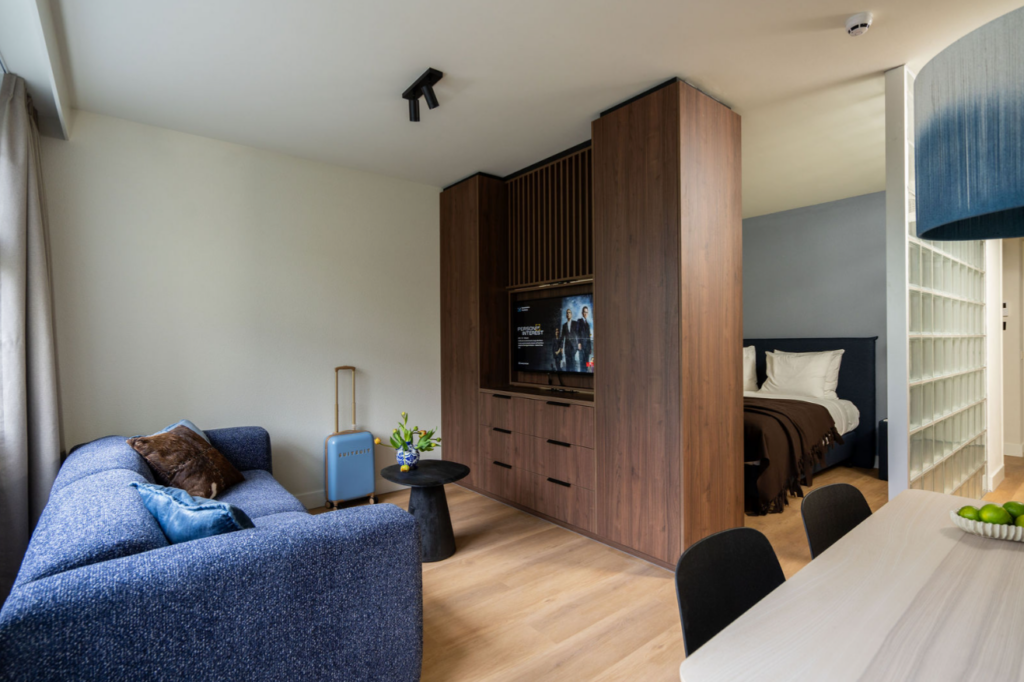
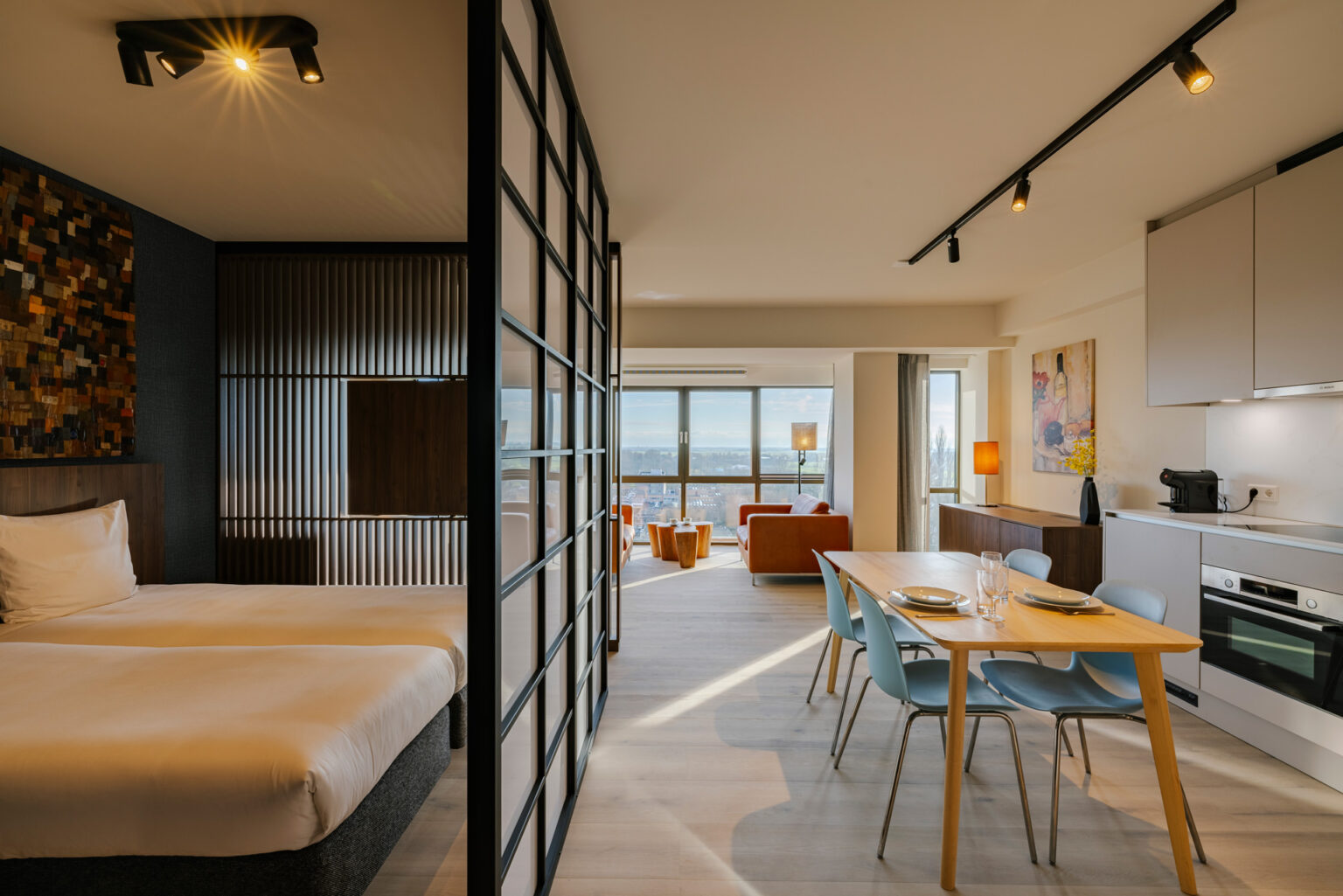
1 bed | 2 sleeps | 50 m2
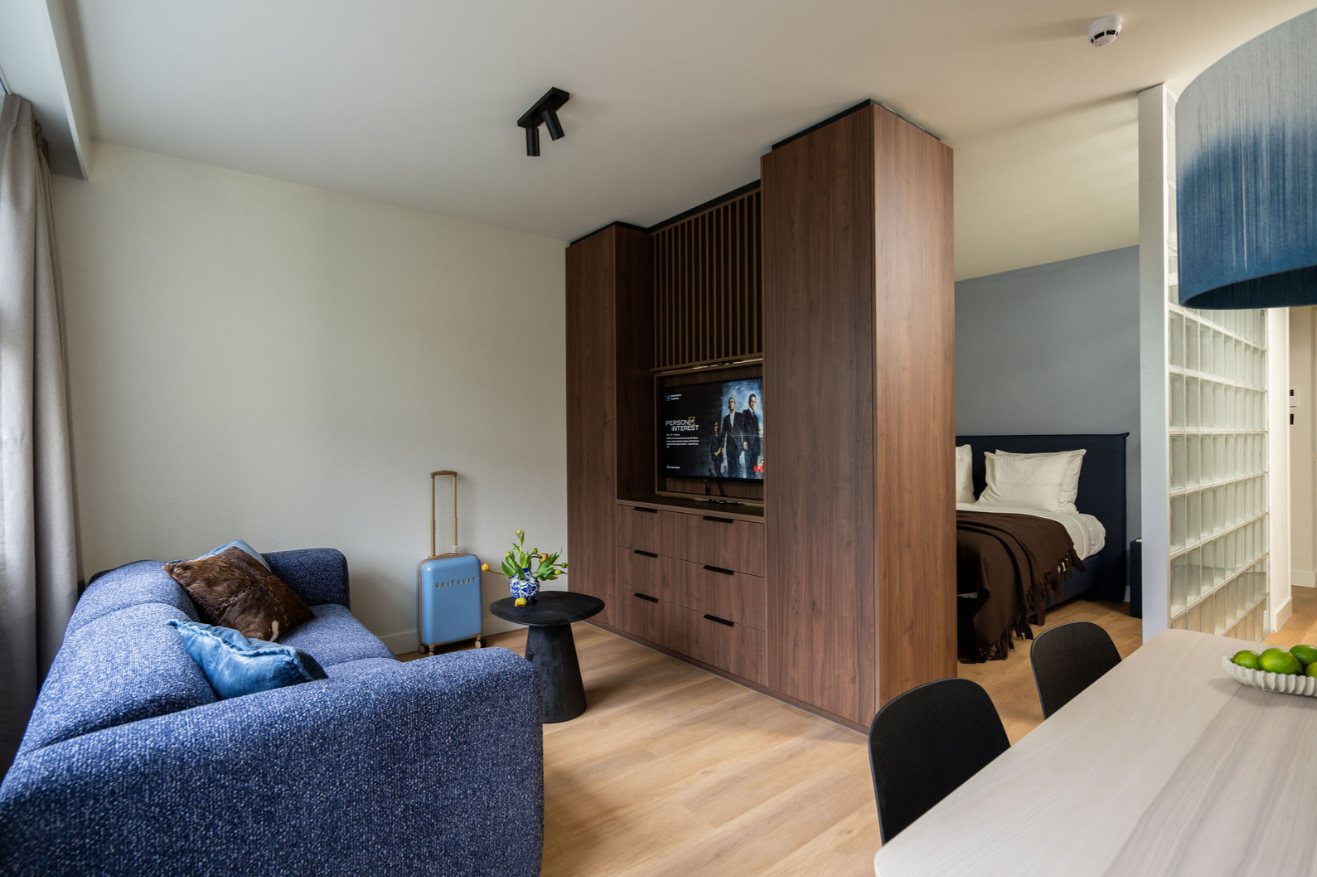
1 bed | 2 sleeps | 45 m2
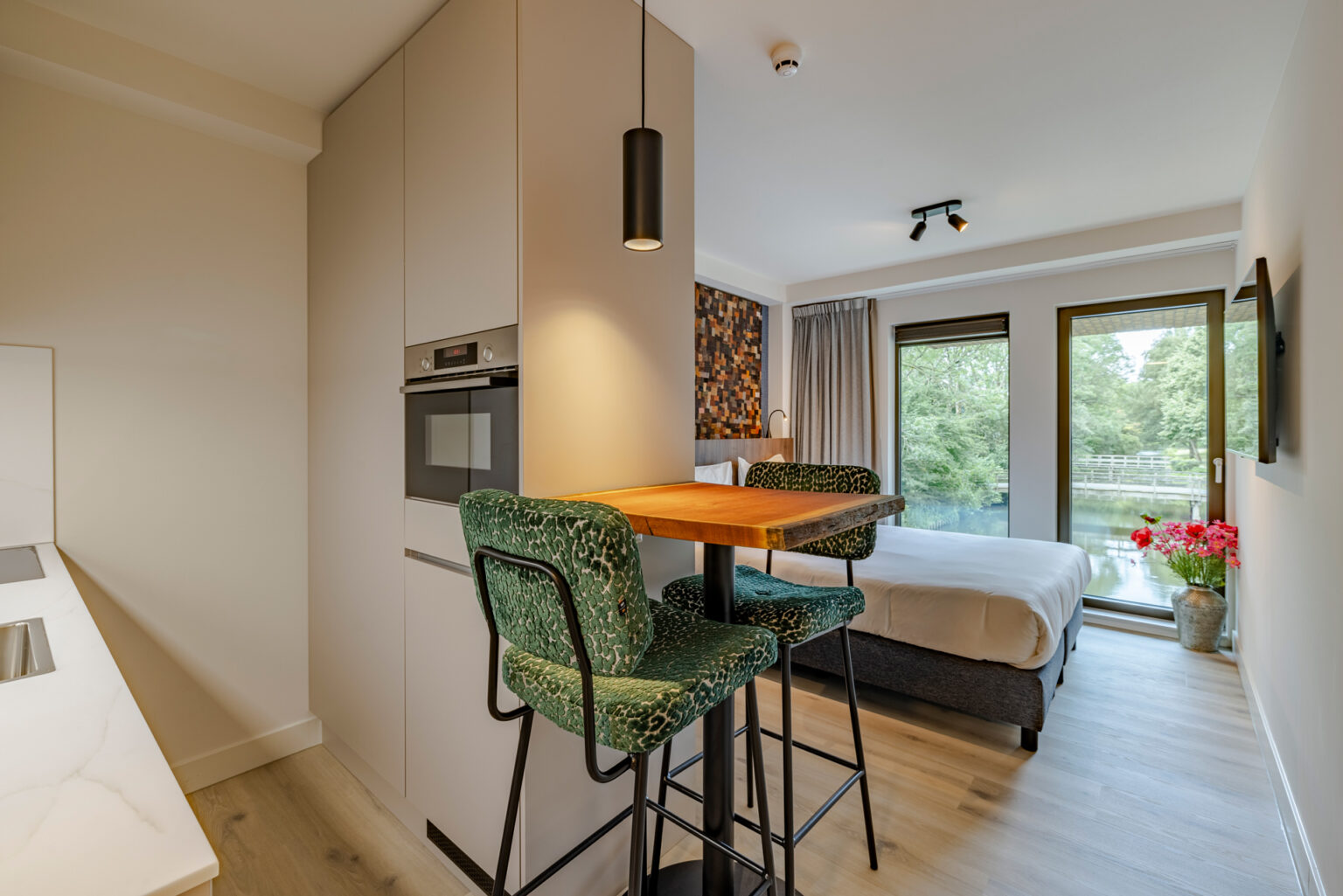
1 bed | 2 sleeps | 22 m2
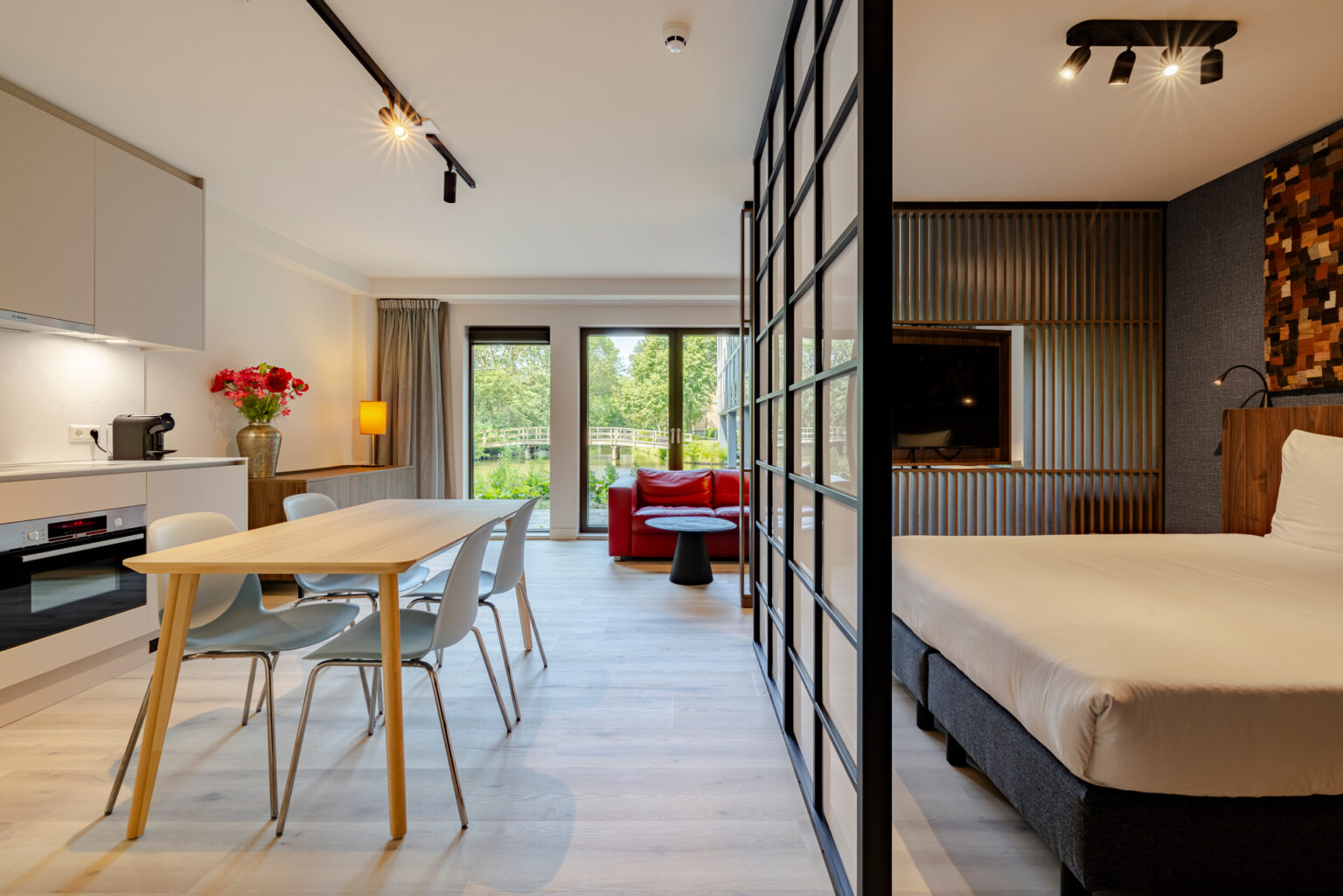
1 bed | 2 sleeps | 45 m2
Hotel comfort. Apartment freedom. All in one.
Ready from day one, just move in
Including cleaning, utilities and municipality registration
Ideal for stays of 28 days and longer
The comfort of an apartment with hotel-style services
Between Amsterdam, Schiphol and the Zuidas
Schedule a personal (e-)viewing with one of our housing specialists and explore the apartments on location or through a digital tour, including a one-on-one consultation.
A bright, calm interior with natural materials and a clean, modern aesthetic
Soft tones, warm textures and carefully selected details create a refined yet inviting space. Inspired by Scandinavian and Japandi design, the interiors bring together natural materials, clean lines and a calm, modern feel.
New in the Netherlands
For many guests staying longer in the Netherlands, registering with the municipality is one of the first and most important steps. It is required to obtain your BSN and gain access to essential services such as healthcare, banking and employment.
At Htel, this is fully taken care of. Our serviced apartments are suitable for official registration, making your arrival in a new country smooth and stress-free. Think of it as a soft landing, giving you the peace of mind to focus on settling in and starting your new chapter.

Frequently asked questions
Housekeeping Service
Weekly cleaning is included during your stay.
Extra cleaning
More frequent cleaning is available at an additional cost, for more information, we refer you to the Resident Service Desk.
One dog with a maximum weight of 20 kg is permitted to stay at Htel Serviced Apartments against a non-refundable fee of € 15,- per night. For futher information please contact our reservations department. Please note that cats are not allowed.
Yes you can, you can park your bike inside during your stay. This is free of charge.
You may reserve (upon availability) a baby cot, free of charge, with a maximum of 1 per apartment.
At Htel Amstelveen you can find a laundry room on the ground floor. You can wash and dry your clothes here.
All guests at Htel Serviced Apartments can make use from the dry cleaning Service. More information on pricing and delivery times can be obtained from the Resident Services Desk.
Htel Serviced Apartments is a non-smoking building. Therefore it is not allowed to smoke inside the apartment nor in the public areas.
Some of the apartments have connecting doors. For more information about these apartments you can contact us via sales@htelapartments.com or by calling +31 204266400
All apartments have irons and ironing boards.
All our apartments have a safe.
All our apartments have a fire alarm.
We offer a wide range of television channels. Feel free to contact us if you want more information about the different television channels. Contact us via sales@htelapartments.com or +31 204266400
We have a minimum stay of 28 days, with a maximum of 180 days. For stays exceeding 180 days, we can offer you an apartment at Teilingen Residence in Amsterdam Buitenveldert. You can get more information at our Resident Service Desk.
At the moment this is not possible, we have selected a standard package for our guests. However, if you have any special needs, you can always share those with us and we will see what we can do for you.
Contact
T: +31 (0)20 4266400
E: welcome@htelapartments.com
Laan van de Helende Meesters 421
1186 AL Amstelveen
Based in Greater Amsterdam, just a short distance from Schiphol, the Zuidas, Amsterdam Centre and Haarlem.
© 2026 | Highlight Hotel Group